---
description: >-
Connect your AI support agent to Zapier so your team can query from over 5,000
different applications and get instant AI answers.
---
# Zapier
{% hint style="success" %}
Available as an add-on for paid plans
{% endhint %}
Our Zapier app allows you to input a question and output an answer along with the references/sources.
### How to connect to Zapier
1. **Log in or sign up to Zapier**
Create a [free Zapier account](https://zapier.com/sign-up) if you don't already have one.
2. **Create a Zap**
You can use AskAI as an action from any trigger, you input a question, and your AskAI returns an answer.
If you need some inspiration on what to build, you could:
* Reply to an email with an answer to a question
* Reply to Jira tickets using your internal knowledge base
* Add an answer to new FAQs that get added to a Google Doc or Airtable from your team
* You can do almost anything you can think of!
3. **Add AskAI, as an action, to your Zap**
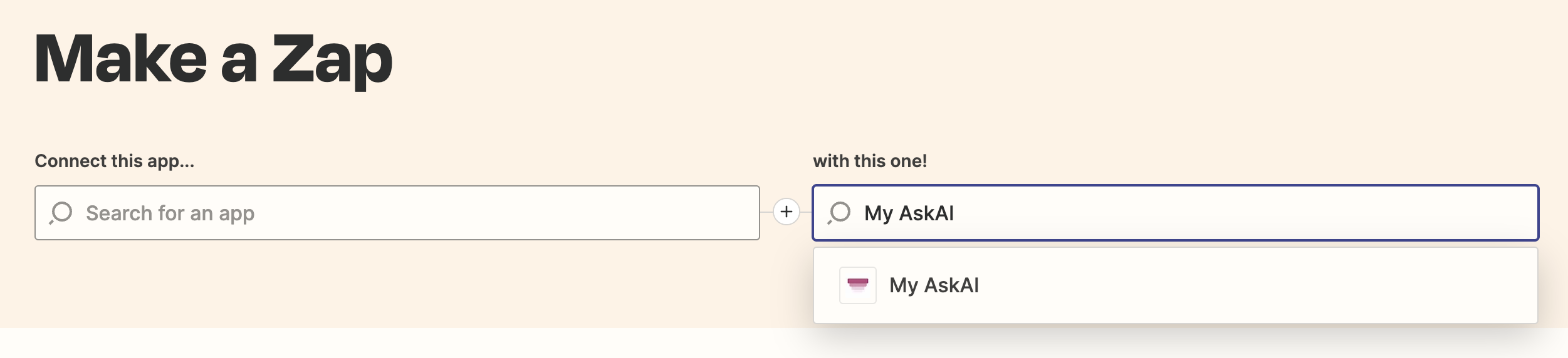
Within Zapier you can search for **My AskAI** as an **Action** to add to your Zap.
[https://zapier.com/apps/my-askai/integrations](https://zapier.com/apps/my-askai/integrations)
4. **Connect to your AskAI**
Go to _**Channels > API access (incl. Zapier)**_ then copy your My AskAI's **ID** and **API Key**.
Zapier will ask for this information when you create your Zap.